
Member records
Add the people involved in the workspace and review the All Members view. Keep recognizable member details so assignments refer to the intended person.
Bring team members, project teams and recorded attendance into your interior business workflow. Make assignments recognizable and give the next site visit or project handover a clear responsible person.
An interior studio depends on people moving information between the office, client and site. A designer may be reviewing a proposal while another team member is visiting the property. Team management for interior designers starts with knowing who is involved, which project they belong to and who is responsible for the next handover. A shared team record helps make those relationships more recognizable.
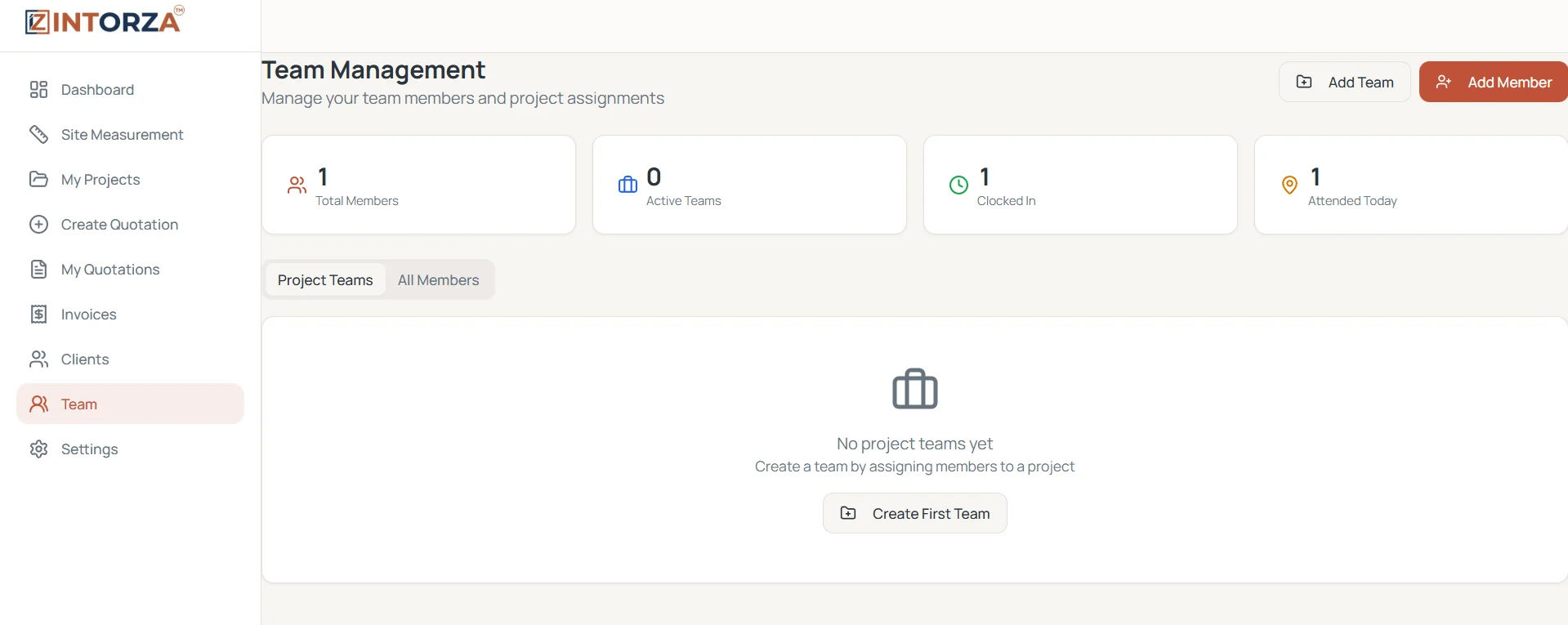
Intorza's Team Management screen includes Add Team and Add Member controls, Project Teams and All Members views, and summaries for total members, active teams, clocked-in members and attendance recorded today. Use that context alongside the role and assignment controls available in your workspace. Agree how your studio will keep member details, responsibilities and attendance entries current so the overview remains useful when several people are working across different sites.
Add the people involved in the workspace and review the All Members view. Keep recognizable member details so assignments refer to the intended person.
Create a team by assigning members to a project. Review which group is associated with the work before beginning the next coordination conversation.
Review the recorded clocked-in and attended-today summaries shown on the team screen. Use your studio's agreed routine to maintain and check attendance entries.
Use the roles and assignment controls available to your account to organize responsibilities. Review access and project ownership when a person's role changes.
Use clear project names when organizing a group so members can distinguish different clients, properties and work packages. Confirm who belongs to the team and who owns the next handover. A project team is most useful when the people involved understand the work they are coordinating and where to find the associated project and quotation context.
Before a measurement visit, confirm the responsible person, the property details and the questions that need answering. Use the site measurement assignment workflow for the visit's project context, then agree how findings will reach the office team. The team list supports coordination, while a specific handover explains the information and decisions the next person needs.
When someone joins a project or moves to a different responsibility, revisit the team and assignment context. Review the available roles and access controls with the person managing your workspace. Keep attendance entries consistent with your studio's routine and resolve unclear records with the relevant member. A regular review helps the next project conversation begin with current information.
Open Team in Intorza and review the existing member records. Use Add Member for the people who need to participate in the workflow.
Use Add Team and assign members to the relevant project. Check the project name and the group involved before starting the handover.
Review the available role and assignment controls. Tell the team who owns the next client response, site visit or project review and what information they need.
Review recorded attendance and update team context as responsibilities change. Revisit membership and assignments when work moves to a new phase or another person takes over.
These details support different coordination decisions. Review each in the workflow where it belongs.
Explore the interior quotation workflow to see how the agreed scope becomes a proposal, or ask our team about your requirements.
Review Intorza Pro for team collaboration alongside the quotation and invoicing workflow. Confirm the member, assignment, permission and attendance requirements relevant to your studio before choosing a plan.
Cancel anytime · No hidden fees · Instant access
It gives the studio a shared view of the people and project groups involved in its work. Intorza's demonstrated team screen includes member records, project teams, Add Team and Add Member controls, and recorded clock-in and attendance summaries.
Yes. The team screen describes creating a team by assigning members to a project. Use a recognizable project name and agree responsibilities with the group so the team record supports a practical handover.
The demonstrated screen shows Clocked In and Attended Today summaries alongside total members and active teams. Review entries using your studio's agreed routine and confirm any particular attendance-reporting requirement with the Intorza team.
Use the role and assignment controls available in your workspace to organize responsibilities. Review the exact permissions with the account owner, particularly when someone changes role or no longer needs access to a project.
The screen shown here provides recorded attendance context. Confirm payroll calculations, location verification, geofencing or specialist workforce-reporting requirements with Intorza before choosing a process that depends on them.
The site measurement project setup includes an Assign To Member field. Use that assignment with a clear visit brief, then agree how the responsible person will hand verified site findings to the quotation or project team.
Explore the relevant tools and guidance before choosing the next step for your project.
Set up a recognizable site project and identify the responsible team member.
Use the associated records to support a clearer handover.
Connect client context with the right project and recorded billing.
Ask about the workspace controls and coordination workflow your studio needs.
Open Intorza and explore Team, or talk to our team about organizing members, project groups and site responsibilities for your studio.