
Proposal context
Review the quotation reference alongside the client and project information. Check that you have the correct property and scope before editing or discussing the proposal.
Keep your interior proposals organized after the first draft. Review client and project details, edit quotations, export PDFs and record whether each proposal is pending, accepted or rejected.
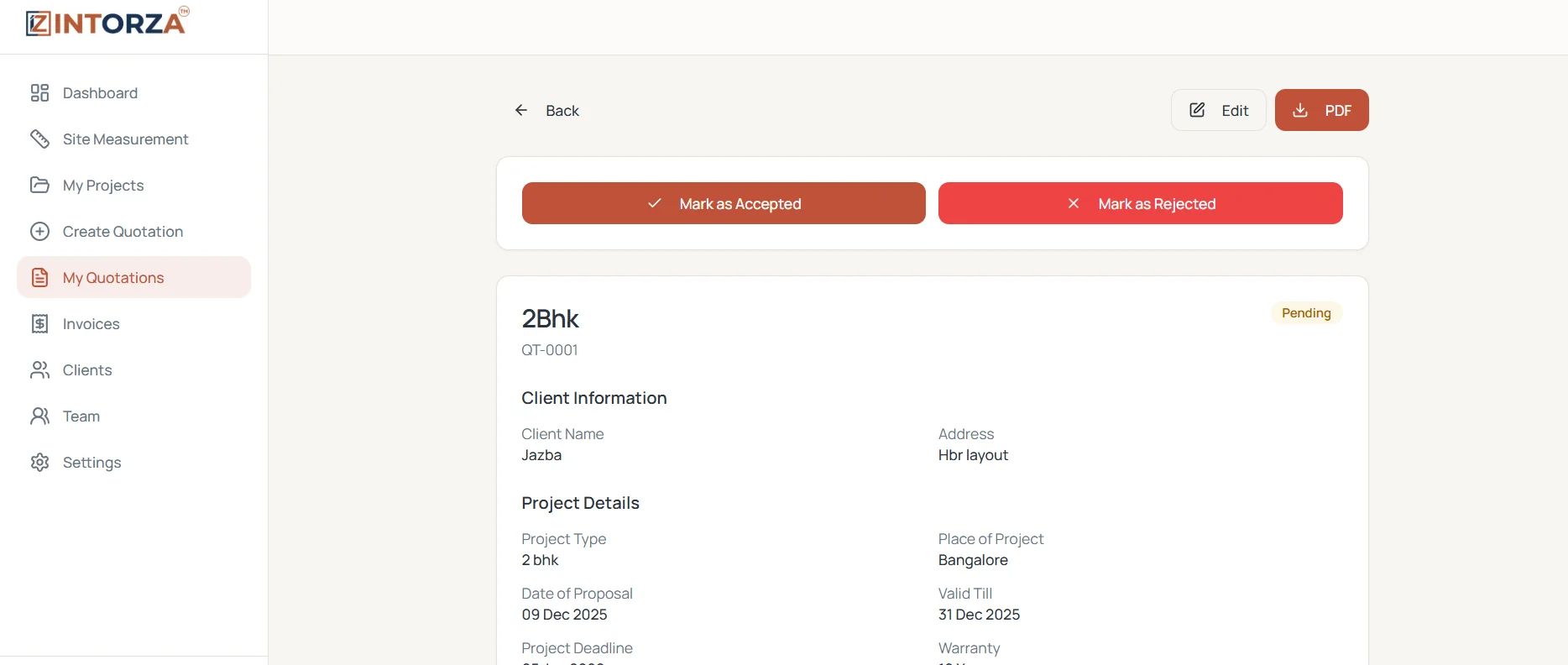
Creating an interior quotation is only the first step. A client may ask for a different finish, a reduced scope or a clearer explanation before deciding. Interior quotation management software helps your team keep the proposal and its recorded status together, so a pending decision is easier to distinguish from accepted work. That distinction matters when planning follow-up and preparing the next project handover.
Intorza's My Quotations workflow includes the quotation reference, client information, project details and a status indicator. The screen shown here also provides Edit, PDF, Mark as Accepted and Mark as Rejected controls. Use those tools to maintain the proposal record after review. Update the status after confirming the client's decision and reviewing the agreed scope so the next person opens a useful record.
Review the quotation reference alongside the client and project information. Check that you have the correct property and scope before editing or discussing the proposal.
Record pending, accepted or rejected status after confirming the client's decision. Use consistent status conventions across the team so the next reviewer understands what has happened.
Use Edit to revise the proposal when the agreed details change. Review descriptions, quantities, rates and terms before producing the next client-facing document.
Export a reviewed quotation as a PDF for the client. Check the generated document and make it clear which proposal you are asking the client to consider.
A pending status becomes useful when it prompts a clear next action. Ask whether the client needs a specification clarified, a particular work package revised or more time to decide. Review the proposal before making contact so the conversation refers to the correct scope and amount. Agree which team member will follow up rather than having several people send conflicting messages.
When a client changes the brief, identify which items and assumptions are affected. Check related quantities, rates and terms together rather than changing the final total in isolation. Export the reviewed document and explain what changed in your handover. Use your team's agreed convention to distinguish an earlier shared proposal from the current version.
Before treating a quotation as accepted, check that the recorded scope matches the client's confirmed decision. Make unresolved choices visible to the person taking over the project. An accepted proposal is a useful starting record for the project and billing workflow, while site execution and payment entries remain separate activities that need their own updates.
Choose My Quotations in Intorza and open the relevant record. Confirm the quotation reference, client, project and current status.
Check the proposed work, specifications, quantities and commercial details. Use Edit if the client-approved brief requires a revision.
Generate the client-facing PDF and check it before sharing it through your agreed communication channel. Make the purpose of the document clear.
Mark the quotation accepted or rejected after confirmation. For accepted work, review the connected project and invoice workflow before the next handover.
A status label answers one question about a proposal. It should not stand in for every event that happens later in the project.
Explore the interior quotation workflow to see how the agreed scope becomes a proposal, or ask our team about your requirements.
Explore Intorza Pro for unlimited quotations and the wider invoicing and team workflow. Review your proposal volume and requirements, then ask our team about any approval or follow-up capability you need.
Cancel anytime · No hidden fees · Instant access
It helps organize proposals after creation, including their client context, details and recorded decisions. Intorza's My Quotations workflow includes status, editing and PDF controls so your team can review the proposal and maintain its record through follow-up.
The workflow shown here includes pending, accepted and rejected status. Review the proposal and confirm the client's decision before changing its status so other team members can understand what the label represents.
Yes. The quotation screen includes Edit and PDF controls. Review the revised document before sharing it and use a consistent handover convention to distinguish the current proposal from any earlier copy already sent to the client.
No. A quotation decision and a payment entry describe different events. Check the project and invoice records separately when reviewing amounts billed, collected or still outstanding.
This page describes the recorded quotation status, edit and PDF workflow. It does not establish electronic signatures, automatic email follow-up or automated interpretation of a client's response. Ask Intorza about a specific requirement before relying on it.
The builder prepares the itemized proposal. Quotation management focuses on what happens after that: reviewing the record, making changes, producing the client document and recording the decision. The two activities belong to the same wider quotation workflow.
Explore the relevant tools and guidance before choosing the next step for your project.
Prepare the work descriptions, quantities, rates and terms before sending a proposal.
See how project records bring associated quotations, invoices and financial summaries together.
Distinguish a client decision from recorded billing and payment progress.
Use a sample structure to review the document's scope and commercial details.
Open Intorza and choose My Quotations to review a proposal, or ask our team about organizing your studio's quotation follow-up.