Turn a floor plan or project brief into an editable interior quotation draft with Intorza Studio. Review the room-wise scope, refine quantities and rates, and prepare a clear proposal for your client.
Take your reviewed draft through professional PDF quotations, client records and invoicing with Intorza Pro. AI generation uses credits; check the balance and usage requirement in the app.
From your interior project brief to a structured quotation draft
Preparing an interior proposal starts with understanding what the client needs. A kitchen renovation, wardrobe package or complete apartment can involve different rooms, materials and installation conditions. Intorza's AI quotation builder gives you a starting draft to review against that scope, with your team making the final decisions on specifications and price.
The demo above introduces two routes in Intorza Studio: Floor Plan Analysis for a drawing, and AI Quotation Builder for project details without a drawing. It then shows an editable estimate draft. The video plays silently and repeats so you can see the workflow while exploring the page.
Already have a complete bill of quantities? Use the interior quotation tool to organize your proposal. For an early budget conversation, try the interior cost calculator before defining the detailed scope.
Start with a floor plan
Use Floor Plan Analysis when you have a drawing that clearly shows the rooms and available dimensions. Review the resulting room coverage against the original plan. Confirm measurements on site and add work that is not represented in the drawing, such as finish upgrades or installation requirements.
Start with project details
Use AI Quotation Builder when the scope begins as a client brief. Describe the property, rooms and required interior work. Include known dimensions, material preferences and budget context. A specific brief gives your team a more useful draft to refine than a broad request for a complete interior price.
AI workflows use credits. Check the current balance and generation requirement inside the app; the standard quotation allowance does not imply unlimited AI usage. Ask the Intorza team about plans and AI credits.
Create and review your AI interior quotation in four steps
Keep the convenience of an AI-generated starting point and the detail of a professionally reviewed proposal. The final scope should match the actual project and the agreement you want the client to approve.
01
Choose your starting point
Upload a clear floor plan for analysis, or start with project details when a drawing is not available. Confirm the AI credit requirement shown in the app.
02
Make the scope specific
List the rooms and required work. Add available dimensions, material preferences and exclusions so the draft has useful project context.
03
Review the generated draft
Check each room, work item, quantity and rate. Replace assumptions with verified site measurements, supplier prices and agreed specifications.
04
Prepare the client proposal
Confirm totals, taxes, payment terms and validity. Export the reviewed quotation and track the next step with your client in Intorza.
What makes an AI quotation ready for a client?
A generated total is only part of a useful interior proposal. Make the assumptions visible so the client can compare the work and your team can deliver the agreed specification.
Room and work coverage
Confirm every agreed room and work package is included. Identify civil work, electrical changes, appliances and other exclusions explicitly.
Materials and measurements
Specify board grades, finishes and hardware. Verify dimensions, quantities and units against the site rather than relying on an inferred measurement.
Rates and project conditions
Check current supplier and labour costs, transport and installation access. Adjust the draft for the actual project location and finish selection.
Commercial terms
Review applicable taxes, payment milestones, quotation validity and the process for scope changes. Separate optional upgrades from the agreed base scope.
Use the interior quotation format and sample as a document checklist when reviewing your AI draft. The draft supports preparation; your team confirms the final measurements, rates and terms.
Keep your reviewed AI quotation connected to the whole project
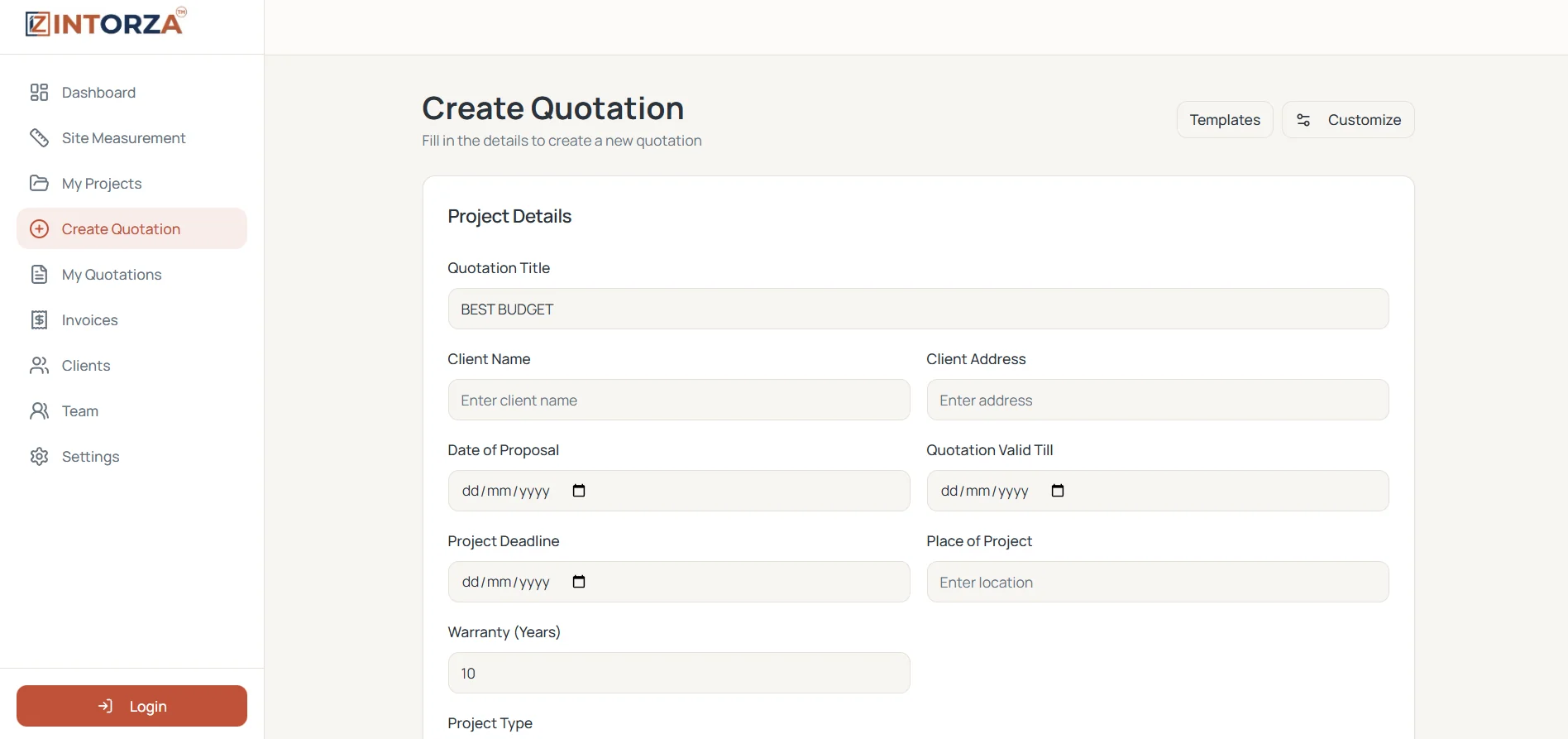
Put client details, work descriptions, quantities and rates into a structured proposal. Make it clear what you are quoting for each room, rather than sending a single unexplained project total.
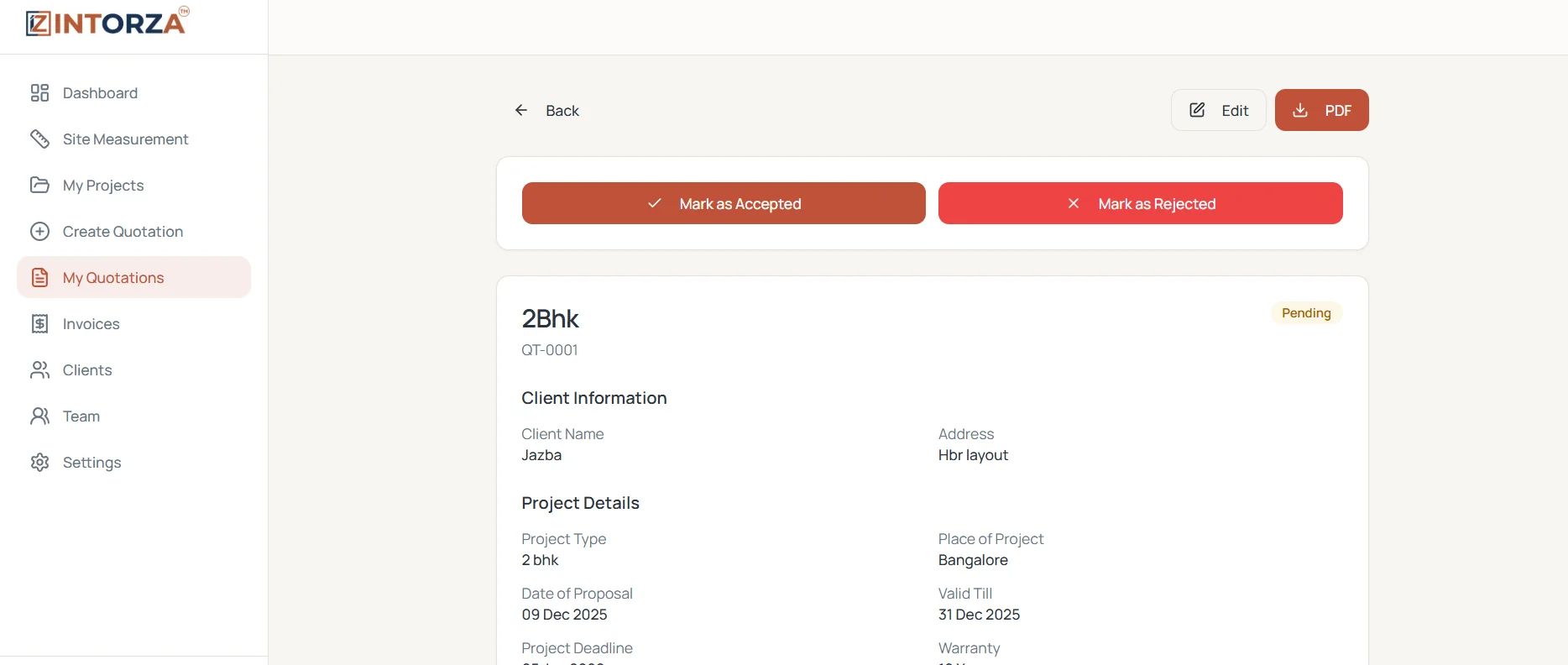
Find your proposals in one place, edit the details as the scope changes, and track whether a quotation is pending, accepted or rejected. Review the agreed version before moving the project forward.
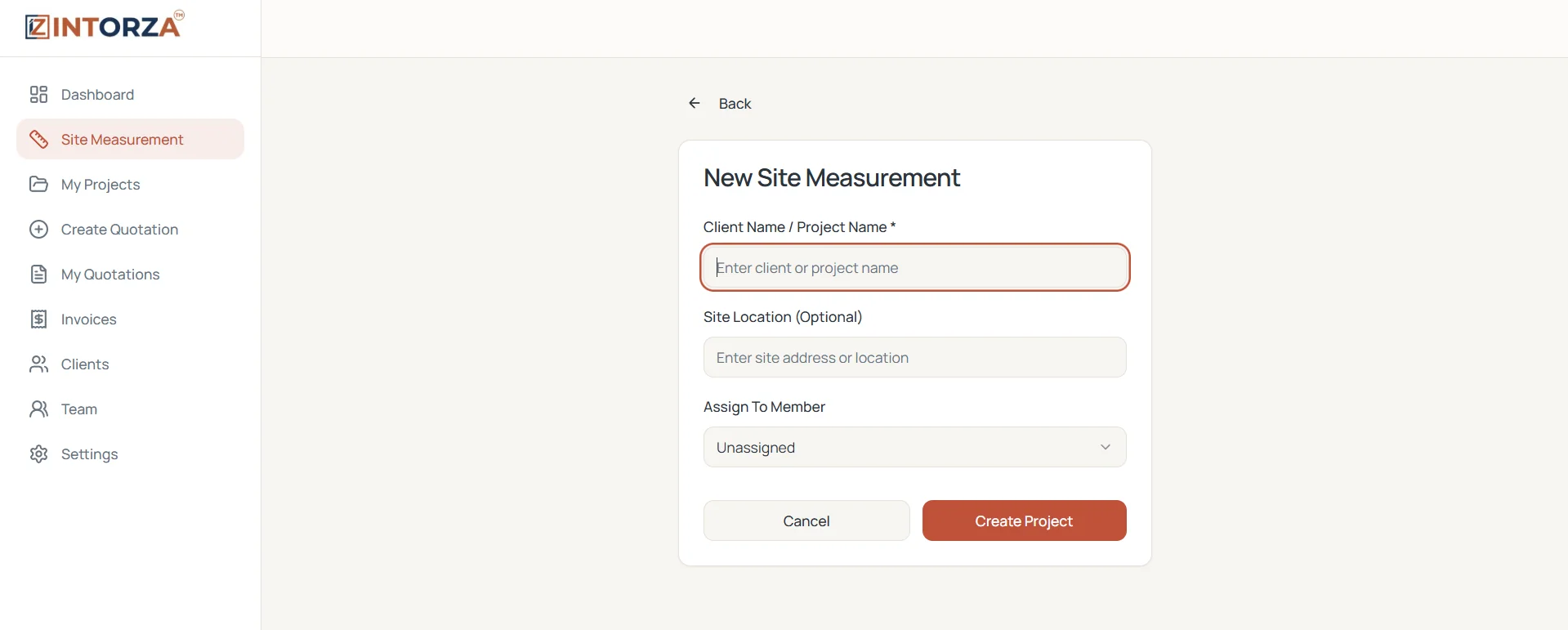
Keep measurements and project information organized before pricing the work. A room-by-room scope helps you separate carpentry, ceilings, finishes and installation assumptions.
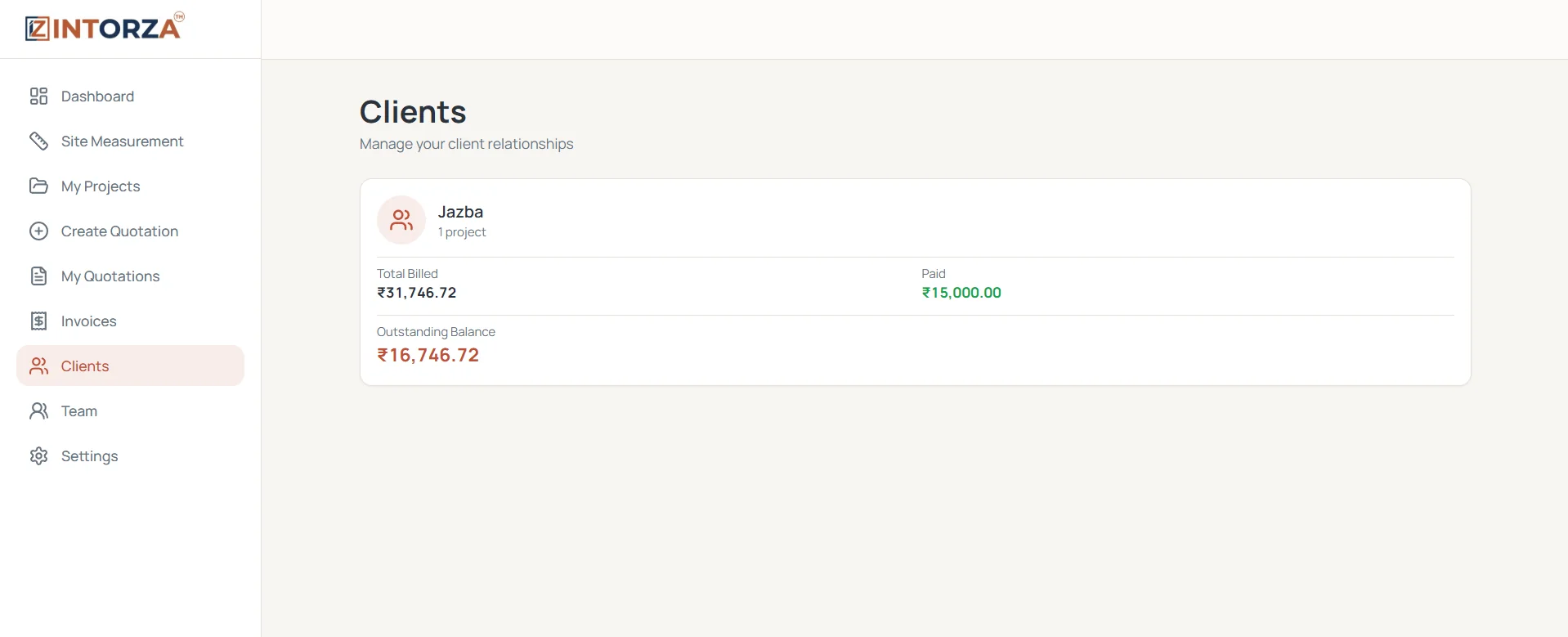
Keep customer details, project history and billing context together. When a client asks about an earlier quotation, start with their existing record instead of searching through disconnected files.
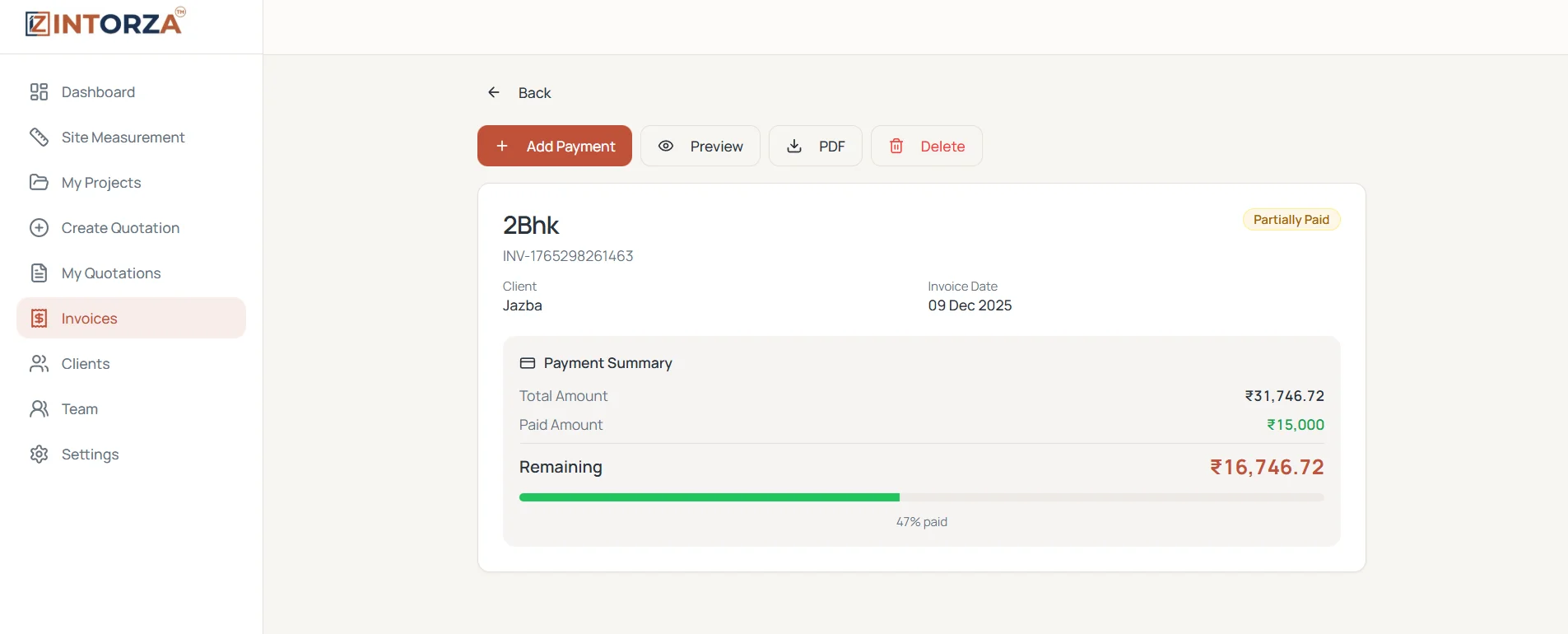
Keep the next stage of the project connected to the proposal the client accepted. Generate invoices and track payments without losing sight of the original quotation.
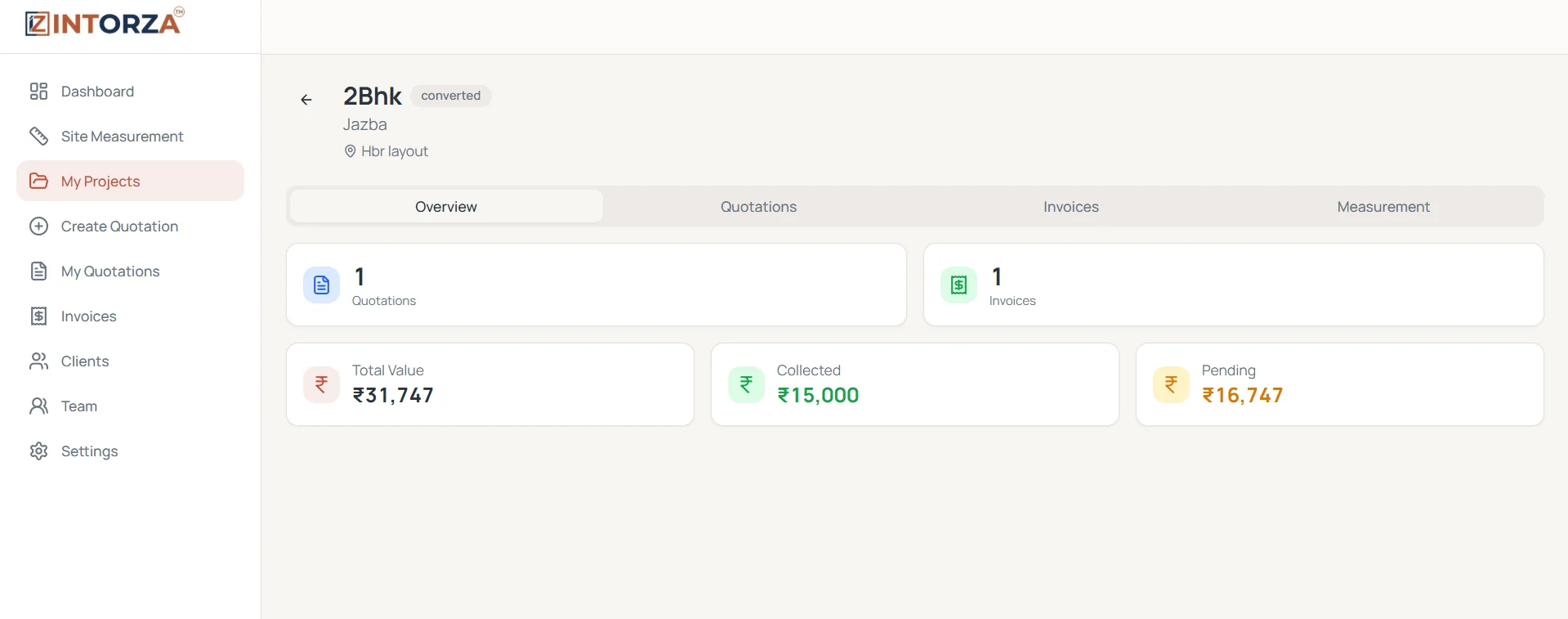
Once the quotation becomes a project, review its associated quotations, invoices and payments together. Keep quoted value and pending amounts visible while work progresses.
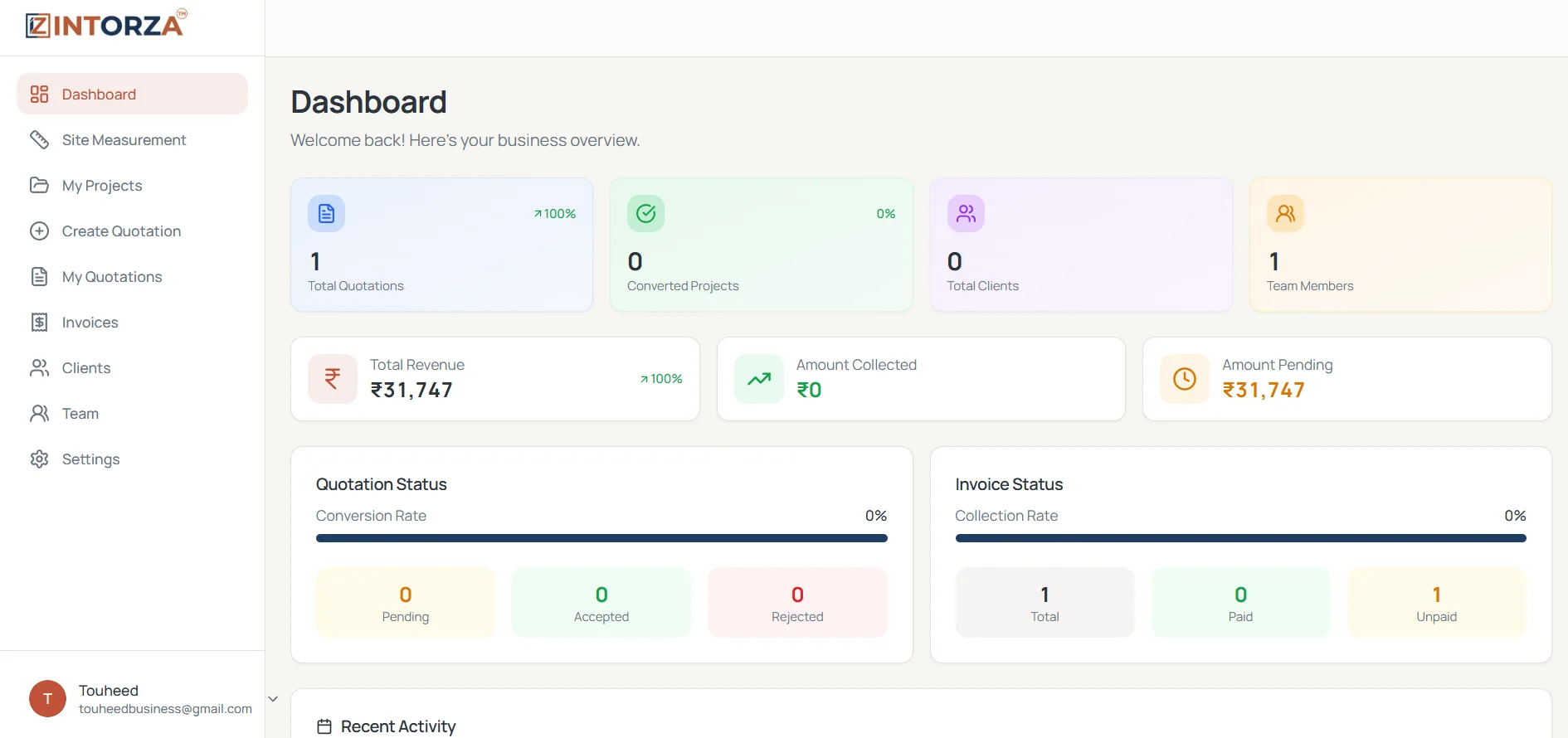
Use the dashboard to review quotation activity with your projects and billing. Keep your proposal workflow connected to the rest of your interior design business.
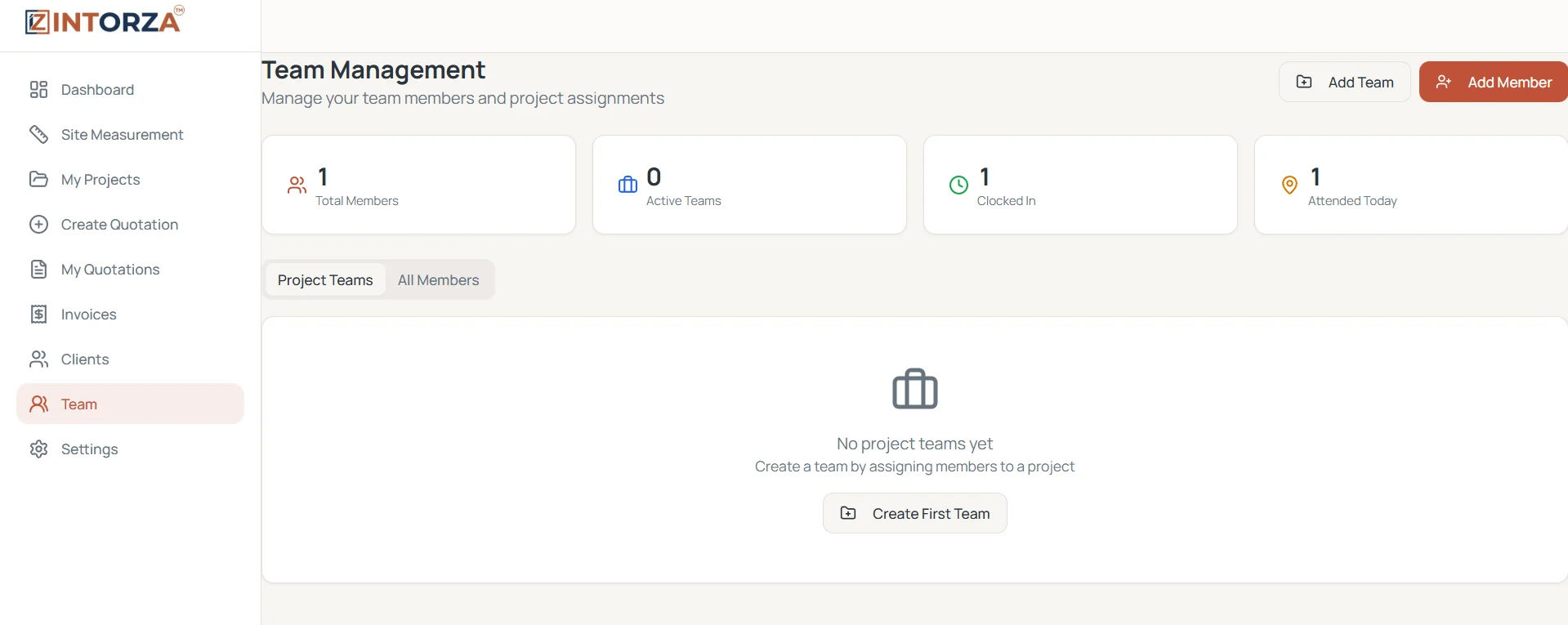
Organize team members, roles and project assignments in the same workspace. Keep site work and project responsibilities connected as a quotation moves toward execution.
Use account roles and permissions to organize your team's access.
AI interior quotation builder FAQs
What is an AI interior design quotation tool?
It helps turn a project brief or floor plan into an interior quotation draft. Intorza Studio offers a floor plan analysis route and an AI quotation builder that starts with project details. Review the draft before presenting it to a client.
Can I create an AI quotation without a floor plan?
Yes. The AI Quotation Builder route starts with your project details. Describe the rooms, work required, materials and available measurements so the draft reflects your intended scope.
What should I check in an AI-generated interior estimate?
Check room coverage, site measurements, units, material grades, hardware, quantities, labour, rates and exclusions. Confirm taxes, payment milestones and validity before treating the draft as a final quotation.
Does the AI replace a site measurement or final pricing review?
No. A generated draft is a starting point. Verify dimensions against the site and confirm supplier prices, installation conditions and the client's specifications before committing to a price.
How much does Intorza Pro cost, and are AI credits unlimited?
Intorza Pro is listed at INR 499 per month. AI workflows use credits; unlimited standard quotations should not be read as unlimited AI generation. Check the current credit balance and usage shown in the app before starting a generation.
Can I export and manage the quotation after reviewing it?
Use Intorza's quotation workflow to edit the proposal, export a professional PDF and track the client decision. Accepted quotations can continue into the project and invoice workflow.
Build Your Next Interior Quotation in Intorza
Bring your work items, pricing and client details together, then move from the proposal to the project with a clearer record of the agreed scope.