
Invoice identity
Use the reference, client and date to identify the correct billing record. Confirm which project and agreed work the invoice relates to before discussing its balance.
Keep interior project billing clear with invoice records, payment entries and a remaining-balance summary. Review partial payments, preview the invoice and export a PDF from the same workflow.
Interior project billing often involves more than one payment. A client may pay an advance and settle later amounts as the agreed work progresses. Interior invoice software helps your team review what was billed, which payments have been recorded and what balance remains. That makes a billing conversation more specific than discussing the quotation total alone.
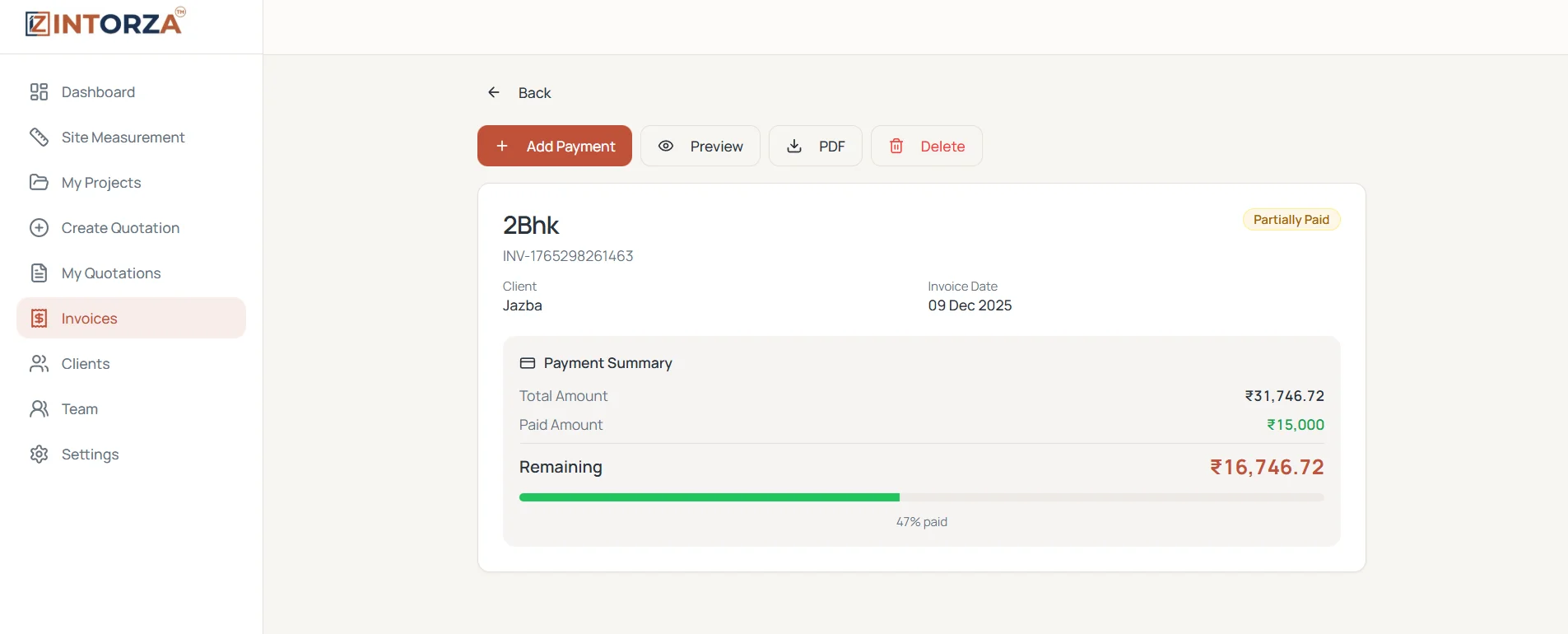
The Intorza invoice screen shown here includes the invoice reference, client, invoice date and payment status. Its payment summary displays total amount, paid amount and remaining balance, with a progress indicator. Add Payment, Preview and PDF controls support the record and document workflow. Before using a figure in client follow-up, verify the supporting payment evidence and the current project agreement.
Use the reference, client and date to identify the correct billing record. Confirm which project and agreed work the invoice relates to before discussing its balance.
Record a payment through the invoice workflow after checking your supporting evidence. Review the amount entered so the paid and remaining figures stay understandable.
Review total, paid and remaining amounts together with the status indicator. Open the relevant record before following up on a balance that may already have changed.
Check the invoice preview and export the PDF for the client. Review the billing details and document content before sharing it through your agreed channel.
Review the accepted quotation and the billing arrangement with the client before preparing the invoice. Confirm the relevant work, client details and amount to be billed. Keep optional upgrades or revised work distinguishable in the supporting scope. The invoice should be understandable in the context of the agreement, rather than appearing as an unexplained total separate from the project.
Check the amount and the invoice to which a payment belongs before entering it. A useful routine distinguishes a promised payment from a payment your team has verified and recorded. Review the resulting paid and remaining amounts after the update. Keep the supporting payment evidence in your team's agreed record system so another person can review the basis for the entry.
Before contacting the client, check the latest invoice status and recorded entries. Confirm that the conversation concerns the right invoice and project, especially when a client has more than one property or work package. Explain which amount is still shown as outstanding and review any disagreement against the supporting documents instead of repeating an outdated reminder.
Confirm the client, project and agreed scope that support the billing. Check the relevant quotation and terms before creating or reviewing an invoice.
Open the invoice record and review the reference, date, client and total. Preview the document and resolve missing details before sharing the PDF.
Use Add Payment when you have checked the supporting payment information. Enter it against the correct invoice and review the resulting summary.
Use the paid, remaining and status information to guide the next billing review. Check the source entries if the client's understanding differs from the recorded balance.
A clear billing review separates the proposal, invoice and payment entry. Each represents a different part of the project conversation.
Explore the interior quotation workflow to see how the agreed scope becomes a proposal, or ask our team about your requirements.
Explore Intorza Pro for advanced invoicing alongside quotations and team collaboration. Confirm the document, billing and integration requirements relevant to your business before choosing a plan.
Cancel anytime · No hidden fees · Instant access
It helps organize the billing record and recorded collections for interior work. Intorza's invoice screen includes a reference, client, date, status, payment summary and controls for adding payments, previewing the invoice and exporting a PDF.
Yes. The demonstrated workflow includes Add Payment and a partially paid status, with total, paid and remaining amounts. Check the payment evidence and the correct invoice before entering an amount.
Yes. Preview and PDF controls are shown on the invoice screen. Review the document details before sending the PDF to the client through your agreed communication channel.
This page describes recorded payment entries and a balance summary. It does not establish an online payment gateway, automatic collection or bank reconciliation. Confirm any payment-processing integration you require with Intorza before relying on it.
Do not assume a billing tool determines the right tax treatment for every project. Check the applicable details with the person responsible for your invoicing and tax review before sharing the document. This page describes the workflow rather than providing tax advice.
The accepted proposal supplies the work and pricing context for the billing workflow. Review quotation decisions separately from invoice and payment records, then use the project or client overview to understand their recorded relationship.
Explore the relevant tools and guidance before choosing the next step for your project.
Define the itemized scope and terms before moving into billing.
Keep associated quotation and invoice records connected to the work.
See the client perspective across recorded projects and billing.
Discuss document requirements and the workflow your team needs.
Open Intorza to explore Invoices, review payment entries and preview your document, or ask our team about your studio's billing workflow.